
This week’s offer is on screen at the till – at the right price. Digital signage for retail
One screen at the till, one at the entrance, perhaps one in the shop window: modsi makes sure they show what you want to show today – without a USB stick and without a trip to the branch.
Access by request · billed by invoice and bank transfer, monthly or yearly

In-store screen advertising: typical spots
At the till
People waiting look at the screen. A short video on the offer of the week or an image with an add-on offer plays in a loop. You set how long images are shown in the playlist.
At the entrance
New stock, seasonal items, opening hours on public holidays. You upload an image for this from your computer or straight from your smartphone – the mobile app puts it into the playlist.
In the shop window
Moving images instead of a poster, even after closing time. Content already downloaded keeps playing if the Wi-Fi drops out; the player catches up on changes as soon as the connection is back.
Price changed, screen up to date
An overlay places a logo, a line of text or a colour block over the content currently playing. You change template fields such as “Product name” and “Price” without touching the layout – per video if you wish: you enter the name and price when uploading and the overlay shows them to match the item currently playing.
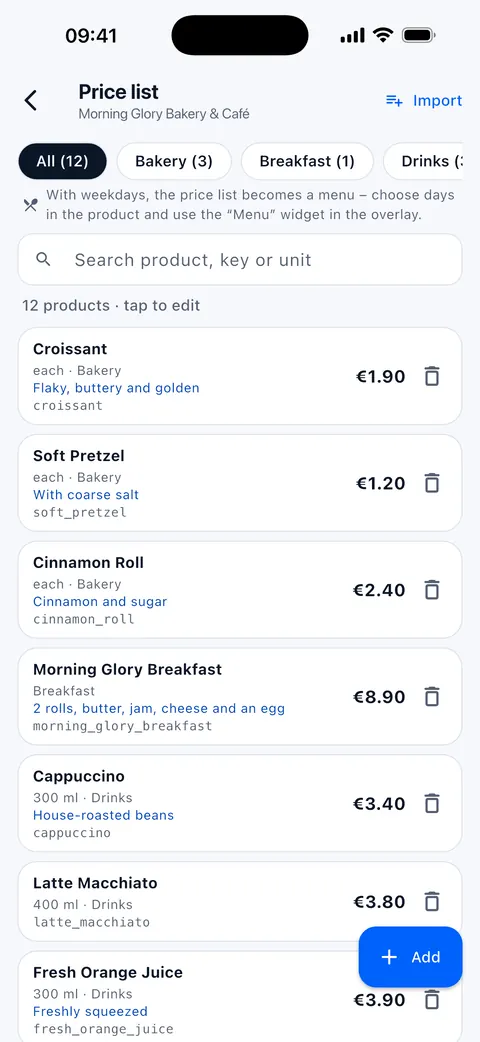
If a price applies to several items of content, you maintain it once in the price list: overlays and slides draw on it, and modsi automatically republishes the affected playlists. The player only switches once it has downloaded everything in full – the screen never shows a half-finished state.
The price list in detailSeveral shops, one system
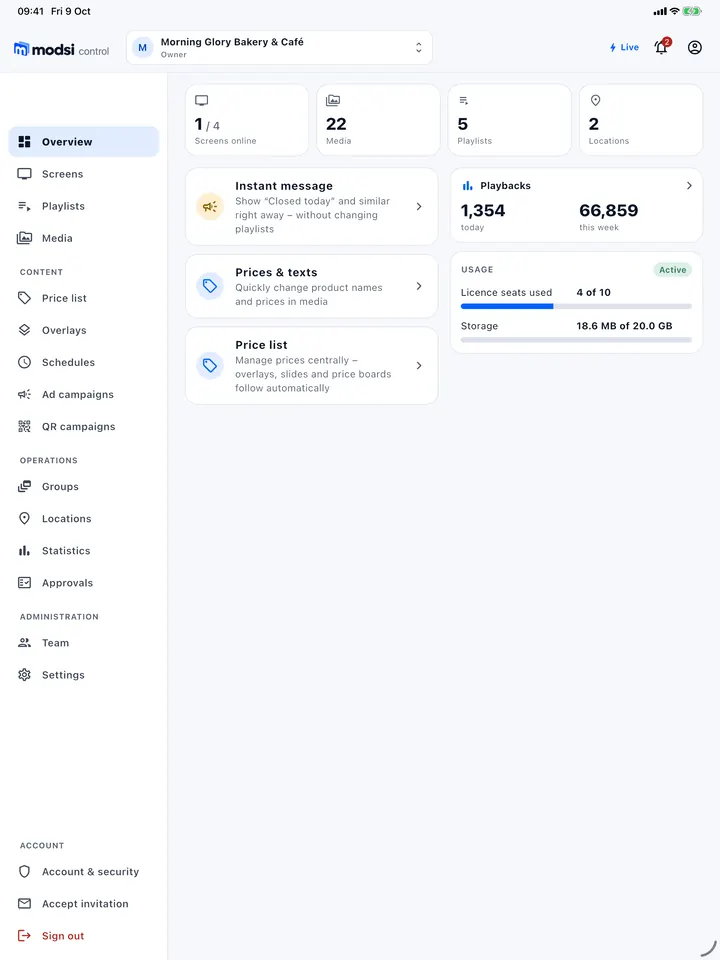
You organise screens by location. Store staff only get access to their own branch: they can control screens and assign playlists there, but cannot change media, prices or overlays. Owners and administrators see all locations.
You assign a publication to one screen, several or all of them. And you can see for each screen whether the new version has arrived – “assigned” and “active” are two different things in modsi.
Good to know
- Proof of play
How often a video or image played on each screen, with CSV export – useful as proof for suppliers.
More details: Proof of play
The playback statistics count, per media item and screen, how often a video or image played – by day, week, month, year or in total, with CSV export. This helps if a supplier wants proof of a promotion. What is counted are plays, not viewers: modsi cannot know whether the TV was switched on or anyone was watching.
- Hardware
- A TV or display with an HDMI input and an Apple TV or an Android TV device running modsiTV. Alternatively, the web player in a current browser on a mini PC or laptop connected to a monitor. All three platforms receive the same content and count the same towards your licence.Which platform suits you?
- Wi-Fi down
- Content that has already been downloaded keeps playing; the player catches up on changes as soon as the connection is back.
- Closing time
- With operating hours per screen, the player stops outside opening hours and shows a black screen.
What modsi does not do in the shop
- modsi does not switch the TV itself on or off; volume and starting the app automatically depend on the device.
- modsi does not connect to till or merchandise management systems – you enter prices in the price list, also by importing them from the clipboard.
- What is counted are plays, not viewers.
Access to modsi is set up on request. The plans are shown on the pricing page, and you will find the full feature set under Features.
Frequently asked questions from retail
Your question isn’t here? Write to us – we’ll reply by email.
What is a “licensed screen”?
Every screen you create in modsi takes up one licence slot – regardless of whether it is currently online. If you replace a device, the slot stays the same. If you archive a screen, its slot becomes free again. Apple TV, Android TV and the web player count the same.
What happens if the internet in the shop goes down?
Content that the player has already fully downloaded keeps playing. Changes and remote commands arrive as soon as the connection is back; plays collected offline are then reported. We cannot guarantee permanent storage on the device, because the operating system or browser may free up its cache.
Can I run screens in portrait mode?
Yes. In modsi control you choose the orientation for each screen (portrait 90° or 270°), and modsiTV and the web player then rotate their entire display. You create playlists and overlays for this in portrait format. modsi only rotates the image: whether your TV or display may be mounted and run in portrait permanently depends on the device – the manufacturer will tell you.
What do the playback statistics count?
Every display of a video or image that the player played in full or at least halfway – per screen, location and media item, analysed by day, week, month, year or in total, with CSV export. These are plays, not viewers: modsi cannot know whether the TV was switched on or anyone was watching. Plays collected offline appear after the next connection.
Can modsi switch the TV on and off?
Not directly. With operating hours you define for each screen when it runs; outside these hours the player shows a black image and stops playback. On Android TV there is also an experimental standby in which the device sleeps and wakes up at the switch-on time – whether the TV switches off completely depends on the device. Volume or starting the app automatically after switching on are not part of the product. If a player hangs, restart it remotely. For the web player, you set up kiosk mode, autostart and sleep settings on the computer itself.
Can I change prices centrally and show content without video?
Yes. In the price list you maintain products with price, unit and category. Overlays and slides use them via placeholders in texts, via a video linked to a product or via the price board with several lines. If you change a price, modsi automatically republishes the affected playlists. Slides are pages without a video file – for example “Offer of the week” with a price board or “Opening hours” – and run in playlists like images. Both are included in all plans.
Try it at your own till.
A TV with Apple TV or Android TV, or a computer with a browser, is all you need. You pair it with a code and show your first offer.
Access by request · billed by invoice and bank transfer, monthly or yearly