
Your screens show what’s on the counter today. Digital signage software for shops, bakeries and cafés
modsi is digital signage software for shops and hospitality. You manage offers, prices and notices in the browser or in the app on your phone – and they appear on Apple TV, Android TV or in the web player on a monitor.
Access by request · billed by invoice and bank transfer, monthly or yearly
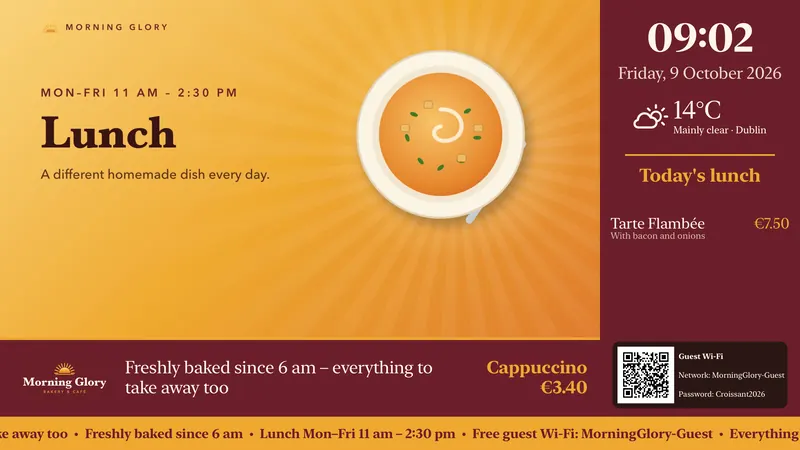
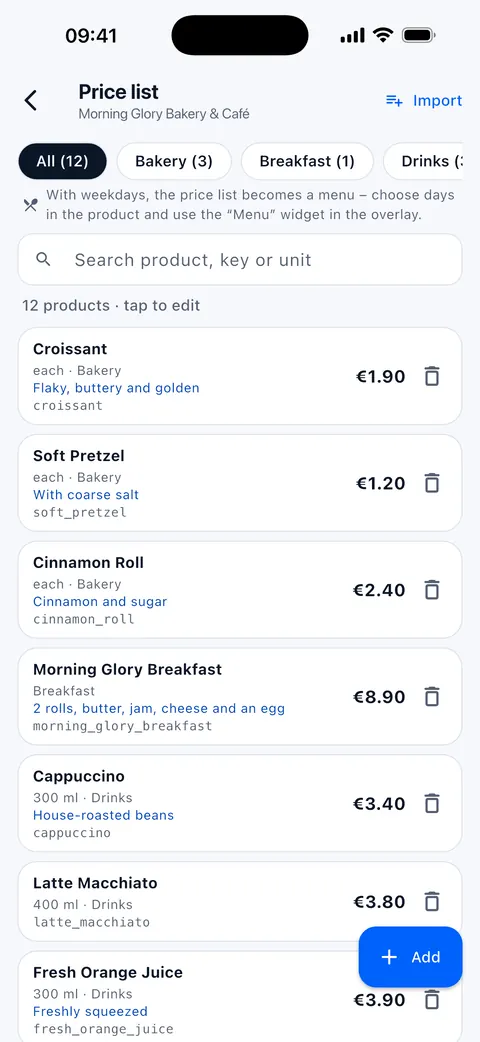
Sample content from the fictional “Morning Glory Bakery & Café”
Change a price once – it’s right on every screen
Croissants cost 10 cents more from tomorrow? You change the price once in the price list. modsi automatically republishes the affected playlists and the screens follow – the offer in the overlay as well as the price board on the wall.
Try it here:
Croissant €1.90 – that’s what both screens show.
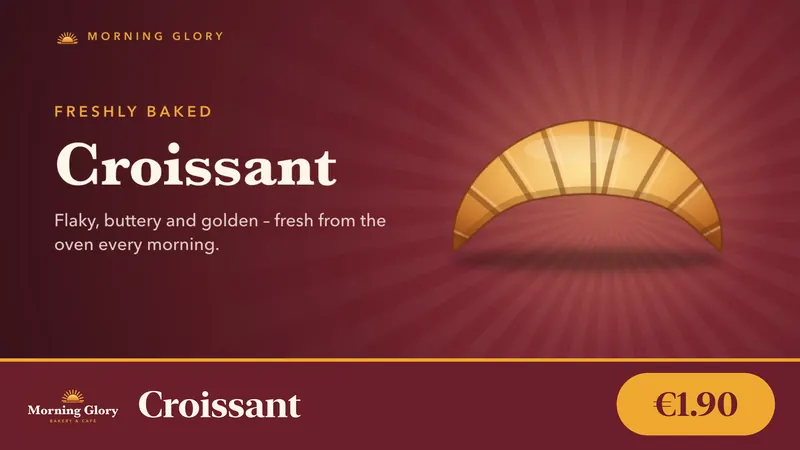
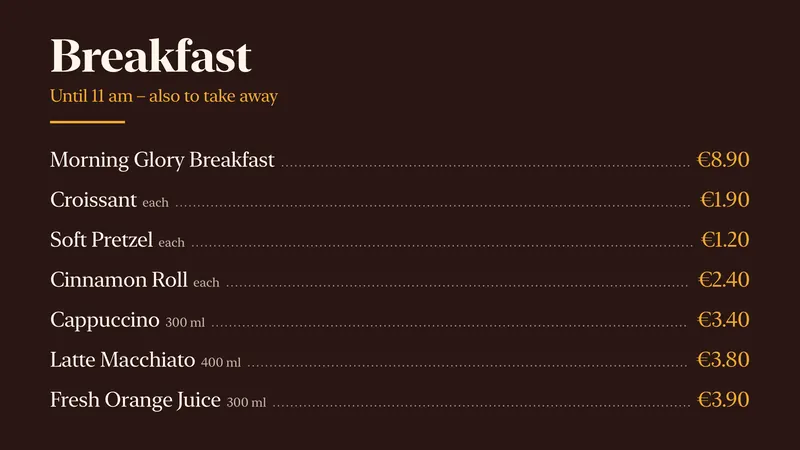
Demonstration in your browser: nothing is saved and no real screen is changed.
A day in the shop, on schedule
You decide once which playlist runs when – by weekday and time, in the location’s time zone. The players download everything in advance and switch on the minute, even if the internet is down.
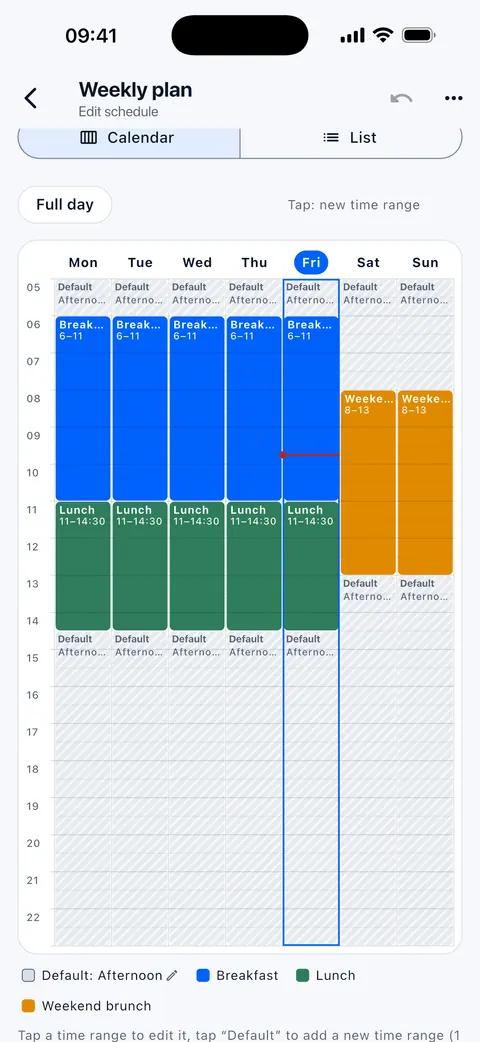
Breakfast
The price board shows rolls, croissants and coffee. The prices come straight from your price list – nobody has to touch a graphic.
Price board as a slide – no video file needed Lunch
At eleven the screen switches by itself: the lunch offer on the left, clock, weather and today’s dish on the right, a ticker along the bottom. The dish comes from the menu and changes every day.
Layouts with zones: Business plan and above
Layout with zones and widgets for clock, weather, menu and guest Wi-Fi Closing early today
An instant message covers every screen: choose a template, set it to last “until 23:59 today”, done – in a few taps on your phone. The playlists stay as they are.
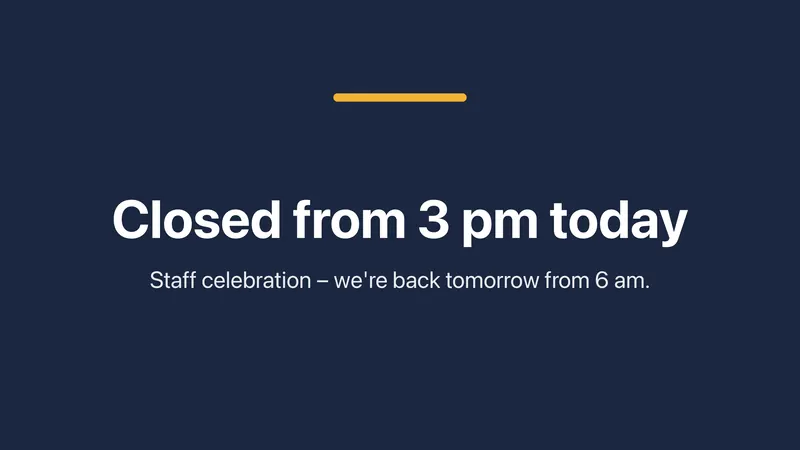
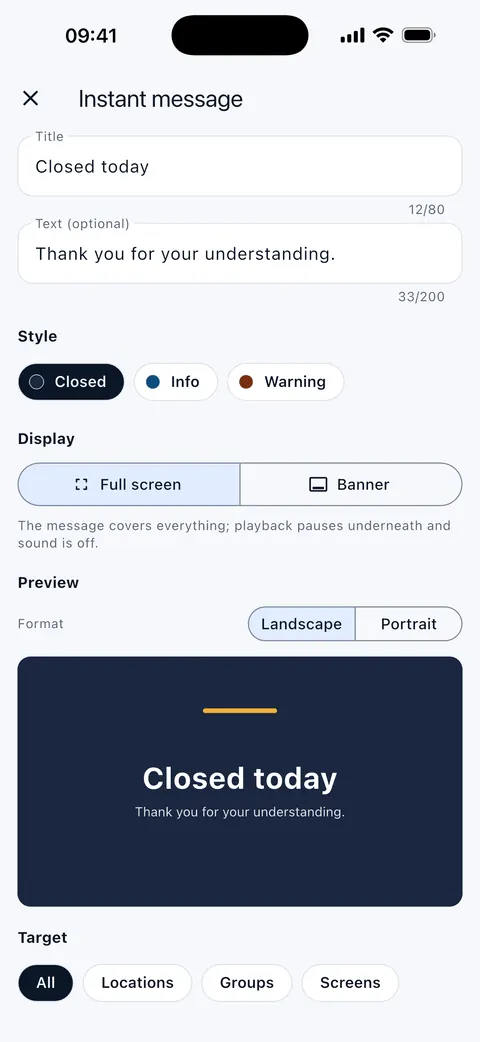
Full-screen instant message, started from the app Closing time
Outside operating hours – for example Mon–Sat 06:00–20:00 – the player stops and shows a black screen. modsi does not switch off the TV itself; in the morning it starts again from the beginning.
From 20:00 the screen stays black – and no outage alert is sent during this time.
All images show modsiTV and the modsi app with sample content from a fictional bakery – not customer projects.
What else is included
Much of this you only notice day to day. Everything is included in all plans unless stated otherwise.
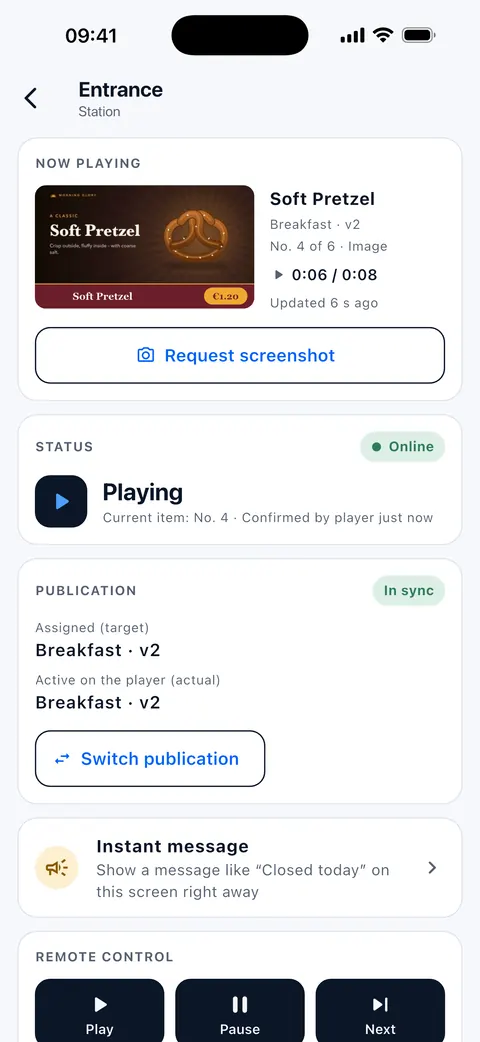
- Now playing
- A preview of what each screen is showing – on Android TV and in the web player also as a real screenshot.
- Outage alerts
- Email and push to your phone when a screen has been offline for a while – after 15 minutes, adjustable.
- Remote control
- Play, pause, next item and restart – from the browser or the app.
- Slides without video
- Offer of the week, opening hours, welcome: templates with text, logo, prices and widgets.
- Widgets
- Clock, weather, ticker, QR code, countdown, events, menu, image gallery and guest Wi-Fi.
- Expiry per media item
- A promotion with a “valid until” date disappears by itself, without anyone touching the playlist.
- Brand kit
- Set your logo, colours and font once – templates, slides and overlays use them.
- Statistics and reports
- What played where and how often – as CSV or as a monthly PDF report by email.
- QR campaigns
- Each screen gets its own short link with scan statistics, counted without cookies.
- Portrait
- Orientation per screen; playlists and overlays also come in portrait format.
- Synchronised groupsBusiness and above
- Several screens start, pause and switch together.
- ApprovalsBusiness and above
- Editors submit content, owners or administrators approve it.
- Ad campaignsBusiness and above
- Ad breaks for partners, with counted plays and a PDF report.
Use cases and devices
Retail
Offers at the till, new stock at the entrance, prices in the overlay – changed from your phone, no USB stick.
Digital signage for retailBakery, café, restaurant
Breakfast, lunch, cake in the afternoon: schedules switch on the minute, and the menu comes from the price list.
Digital signage for hospitalityApple TV, Android TV or web player
Which platform suits your shop, how pairing with a QR code works – and what modsi does not control on the device.
Platforms compared
modsi at a glance
The key facts for reference: devices, data, access.
- What
- Digital signage software for shops, bakeries, cafés and businesses with several branches: manage content centrally and show it on screens in store.
- Playback
- Apple TV and Android TV with the modsiTV app, or the web player in any current browser. All three receive the same content, count the same towards your licence and can be mixed. Which platform suits you?
- Management
- In the browser (modsi control) or in the app for iPhone and Android. Plan and billing in the browser only.
- Setup
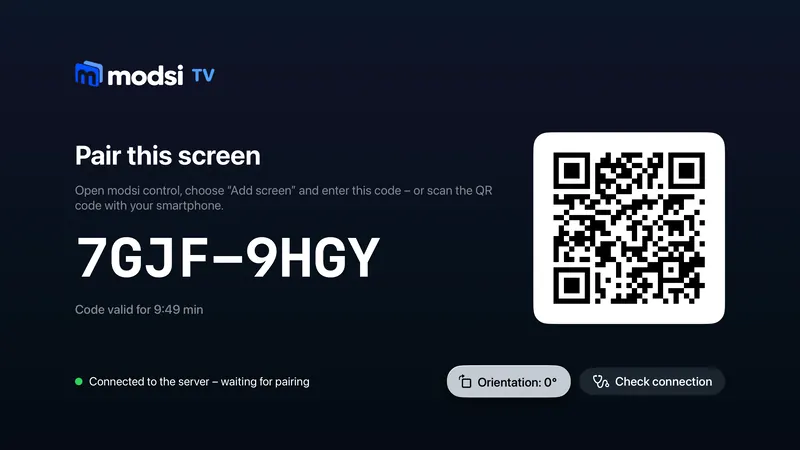
- The screen shows a code and a QR code – scan it or type it in, choose the location, done. No password is entered on the device.
- Offline
- Content that has already been downloaded keeps playing; the players also keep to schedules, instant messages and operating hours offline.
- Data
- Application, database and media are hosted in a data centre in Frankfurt am Main. Media are stored privately and delivered via short-lived, signed URLs.
- Sign-in
- Two-factor with an authenticator app, passkeys, an overview of active sessions and a security log.
- Roles
- Owner, administrator, editor and store staff. Store staff only see their own locations and cannot change prices.
- Provider
- EX-IT GmbH & Co. KG
You pay per screen
Apple TV, Android TV and the web player count the same, billed monthly or yearly. Storage belongs to the company, not the screen. You will find the price calculator and all details on the pricing page.
from€10.00per screen / month
- StarterFor single shops and your first screens.€10.00
- BusinessFor multiple locations and larger teams.€19.00
- EnterpriseIndividual agreement.On request
All prices are net plus statutory VAT. · Access by request · billed by invoice and bank transfer, monthly or yearly
Price calculator and plansFrequently asked questions about modsi
Your question isn’t here? Write to us – we’ll reply by email.
What devices do I need?
A TV or display with an HDMI input, plus an Apple TV or an Android TV device running the modsiTV app. Alternatively, use the web player: a page that runs in any current browser – for example on a mini PC, desktop or laptop connected to a monitor. You then do not need an Apple TV or Android TV. All three platforms receive the same content and can be mixed within one company.
What is a “licensed screen”?
Every screen you create in modsi takes up one licence slot – regardless of whether it is currently online. If you replace a device, the slot stays the same. If you archive a screen, its slot becomes free again. Apple TV, Android TV and the web player count the same.
What is the web player and what do I need to bear in mind?
The web player is a website that you open in the browser of a computer connected to a monitor. You pair it by code or QR just like a TV; it receives the same content, overlays, commands and group timing and is included in the statistics. Please note: sound needs one click after each browser start (or the browser starts in kiosk mode with autoplay allowed), the computer must not go to sleep, and “Clear site data” unpairs the screen.
How do I connect a screen?
After starting, the player – modsiTV on the TV or the web player in the browser – shows an entry code and a QR code. Scan the QR code with your smartphone or enter the code in modsi control, choose the location and give the screen a name.
What happens if the internet in the shop goes down?
Content that the player has already fully downloaded keeps playing. Changes and remote commands arrive as soon as the connection is back; plays collected offline are then reported. We cannot guarantee permanent storage on the device, because the operating system or browser may free up its cache.
Can I run screens in portrait mode?
Yes. In modsi control you choose the orientation for each screen (portrait 90° or 270°), and modsiTV and the web player then rotate their entire display. You create playlists and overlays for this in portrait format. modsi only rotates the image: whether your TV or display may be mounted and run in portrait permanently depends on the device – the manufacturer will tell you.
What do the playback statistics count?
Every display of a video or image that the player played in full or at least halfway – per screen, location and media item, analysed by day, week, month, year or in total, with CSV export. These are plays, not viewers: modsi cannot know whether the TV was switched on or anyone was watching. Plays collected offline appear after the next connection.
How much storage do I have?
Each company gets 5 GB in the Starter plan and 20 GB in the Business plan – regardless of how many screens you license. If that is not enough, you can expand to 20, 50 or 100 GB for a monthly or yearly extra charge; the amounts are shown on the pricing page. You can downgrade as soon as the storage used fits within the smaller tier.
What can the mobile app do?
The app for iPhone and Android covers everyday tasks: create and edit playlists, upload photos and videos from your smartphone, change prices and overlay values, pair and control screens, groups, playback statistics as well as account and security. You manage your plan and billing exclusively in the browser; the app shows no prices and has no purchase functions.
How is my account protected?
You can switch on two-factor sign-in with an authenticator app (with recovery codes for emergencies) or sign in with a passkey. You see active sessions in an overview and can sign them out individually or all together; a security log shows sign-ins and changes. This applies to web and app alike. Browser sessions expire after six hours of inactivity.
Can modsi switch the TV on and off?
Not directly. With operating hours you define for each screen when it runs; outside these hours the player shows a black image and stops playback. On Android TV there is also an experimental standby in which the device sleeps and wakes up at the switch-on time – whether the TV switches off completely depends on the device. Volume or starting the app automatically after switching on are not part of the product. If a player hangs, restart it remotely. For the web player, you set up kiosk mode, autostart and sleep settings on the computer itself.
Can I show different content in the morning and evening?
Yes, with schedules. You create rules by weekday and time of day – for example Mon–Fri 06:00–11:00 “Breakfast”, 17:00–20:00 “After work” – and a default playlist for all other times. You assign the schedule to a screen or a group. The players switch on the minute, even if the internet happens to be down, because they download all playlists in the schedule in advance. Schedules are included in all plans.
Can I show the time and weather?
Yes. In the overlay editor you add widgets as layers: clock, weather, ticker, QR code, countdown and events. The clock shows the time and date in the location’s time zone. For the weather, you enter a town for the location; the server fetches the data every 15 minutes and the player shows current values or three days. Ticker headlines come from an RSS feed, events from an ICS calendar address.
Can I show several pieces of content on one screen at the same time?
Yes, with layouts. In the overlay editor you switch on “Main video in a section”, define the area for the main video and add up to four zones, each playing its own playlist of images or videos – muted, looped and independently of the main video. A ticker at the bottom and a background colour complete the layout. Templates such as “Video left, zone right, ticker at the bottom” are included. Layouts with multiple zones are available from the Business plan.
Can I change prices centrally and show content without video?
Yes. In the price list you maintain products with price, unit and category. Overlays and slides use them via placeholders in texts, via a video linked to a product or via the price board with several lines. If you change a price, modsi automatically republishes the affected playlists. Slides are pages without a video file – for example “Offer of the week” with a price board or “Opening hours” – and run in playlists like images. Both are included in all plans.
Can I show a menu or the guest Wi-Fi?
Yes. In the price list you enter the weekdays and a description for each dish; the “Menu” widget then shows the day’s dishes or the whole week, for example with the “Lunch menu (week)” slide template. For the guest Wi-Fi, you enter the network name and password in the “Guest Wi-Fi” widget – guests connect via QR code. The “Image gallery” cycles through the images in a media folder. Everything is included in all plans.
Can a promotion expire automatically?
Yes. Give a media item a “Valid until” when uploading or later under “Edit” – for example 31 December, 23:59:59 using the “End of day” shortcut. From that point on, modsi leaves the item out when publishing and automatically republishes the playlists that contain it; the assigned screens follow. In the same way, “Valid from” applies to content that should only appear later. The item remains visible in the playlist, where it is marked as expired; in the media overview you can delete expired media together. Included in all plans.
Will I find out if a screen goes down?
Yes. If a paired screen has not checked in for longer than set – 15 minutes by default – all members with access to its location receive an email, a notification in modsi control and the app, and a push notification on their phone. When the screen comes back, a “back online” notification follows with the duration. There is exactly one alert per outage, not a constant stream. You switch off email and push per company under Account & security; the administrator sets the waiting time in the company settings.
How do I get access to modsi?
Access to modsi is by request. Use the contact form with the topic “Request access” to tell us how many screens and locations you are planning – we will set up your access. Billing is by invoice and bank transfer, monthly or yearly. The list prices per screen are shown on the pricing page.
Can several people work together?
Yes. You invite colleagues by email and assign them a role. Store staff only get access to the locations assigned to them and can control screens, but cannot change media, prices or overlays.
You probably have the TV already.
Add an Apple TV, an Android TV device or a computer with a browser – on your own screen you see whether modsi suits your business.
- Create an account and add your first location
- Open modsiTV or the web player on the screen
- Type in the code or scan the QR code
Access by request · billed by invoice and bank transfer, monthly or yearly