
What modsi does today – and where it stops. Features of the modsi digital signage software
This page only lists what actually exists. Features that are only included from the Business plan are marked; team size and storage per plan are on the pricing page.
Three parts, one system
modsi control
Management in the browser: media, playlists, overlays, screens, groups, statistics, locations, team, account security and plan.
Player
modsiTV for Apple TV and Android TV, plus the web player for the browser. All of them download publications in full, check them and play them in a loop.
Mobile app
For iPhone and Android: playlists, uploads from your smartphone, changing prices, pairing and controlling screens, groups, statistics, account security. Plan and billing in the browser only.
Features from the Business plan upwards are marked. The limits for each plan are listed on the pricing page
Content
What appears on screen – from video to the price board from your price list.
Media and playlists
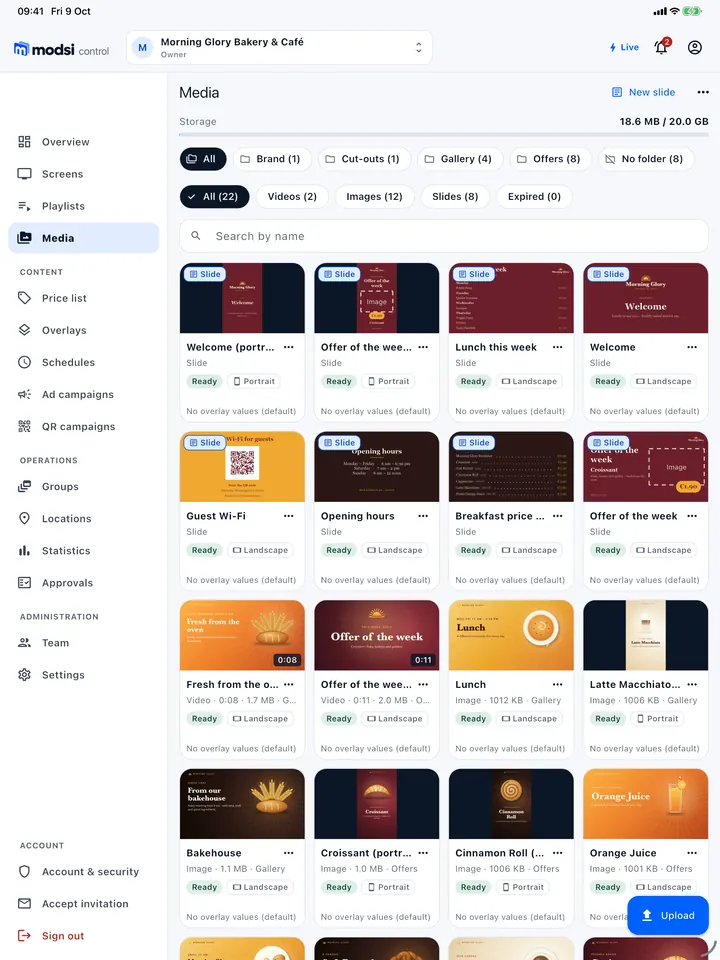
Upload videos and images – from your phone too – and arrange them in playlists; videos play on every player.
More details: Media and playlists
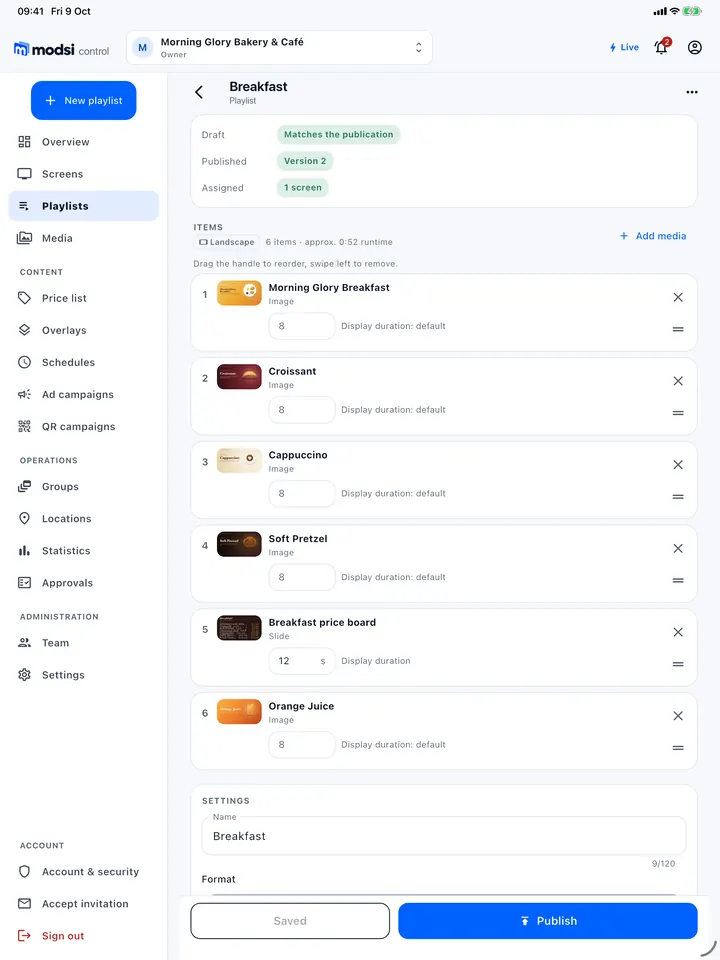
Select videos and images in the browser or drag and drop them – or upload photos and videos straight from your smartphone using the mobile app. modsi automatically converts videos into a uniform MP4 that plays on all players. In playlists, you put the items in order, set how long images are shown and switch repeat on or off.
Overlays with name and price
Place a logo, text or colour block over the content; change name and price without touching the layout.
More details: Overlays with name and price
Place a logo, a line of text or a colour block over the content. You change template fields such as “Product name” or “Price” without touching the layout – per video if you wish: enter the name and price when uploading and the overlay shows them to match the item currently playing. Prices can also be changed on a smartphone and republished in one step. Store staff cannot change prices.
LayoutsBusiness and above
multiple zones (main video, image/video zones, ticker)
Up to four zones with their own playlists next to the main video; templates for landscape and portrait.
More details: Layouts
One screen, several areas: in the overlay editor you define where the playlist’s main video plays and add up to four zones that play their own playlist of images or videos – muted and looped, independently of the main video. Plus a ticker at the bottom, a background colour and rounded corners. Typical setup: video on the left, offers as images on the right, news at the bottom. Templates for landscape and portrait are included. Included from the Business plan.
Guest Wi-Fi with QR code
Network name and password of your guest Wi-Fi as a QR code on screen.
More details: Guest Wi-Fi with QR code
The network name and password of your guest Wi-Fi as a QR code on the screen: guests scan it with their smartphone camera and are connected. Alongside it, the “Guest Wi-Fi” widget shows the network name and, if you wish, the password, in three arrangements; the QR code is generated on the player itself. The password is visible to everyone – only use a separate guest network for this. Included in all plans.
Validity period per media item
promotions expire automatically
“Valid from” and “valid until” per media item – promotions appear and disappear by themselves on the minute.
More details: Validity period per media item
Every video, image and slide can have a “Valid from” and a “Valid until” – date and time in your time zone, with the “End of day” shortcut. A promotion running until 31 December then disappears from all screens without anyone touching the playlist: modsi automatically republishes the affected playlists on the minute, and a media item that only applies from a certain date then appears by itself. Expired media are marked in the media overview, can be filtered and deleted together with one click. Included in all plans.
Slides without video
text, logo, prices and widgets as slides
Slides without a video file, made of text, logo, widgets and the price board – with templates, landscape and portrait.
More details: Slides without video
A slide is a page without a video file: background colour, text, your logo, widgets and the price board from the price list. Templates such as “Offer of the week”, “Welcome” and “Opening hours” are included, in landscape and portrait. Slides run in playlists like images with a display duration, carry an overlay like other media, do not count towards storage and are rendered natively by all three players. Included in all plans.
Price list
manage prices centrally
Maintain prices once – overlays, slides and the price board use them, and affected playlists are republished.
More details: Price list
One price list per company with product, price, unit and category – as a table or imported from the clipboard. Overlays and slides draw on it: via placeholders such as {{price:croissant}} in texts, via a video linked to a product and via the price board, which shows several lines of name … price. If you change a price, modsi automatically republishes the affected playlists and the assigned screens follow. Included in all plans.
Widgets
clock, weather, ticker, QR code, countdown, events
Six building blocks for overlays; the server fetches weather, headlines and events regularly.
More details: Widgets
Six building blocks that you add to an overlay like other layers: a clock with time and date in the location’s time zone, the current weather or three days for the location’s town, a ticker with fixed text or headlines from an RSS feed, a QR code for an address or a text, a countdown to a point in time, and upcoming events from an ICS calendar. The player calculates the clock, QR code and countdown itself; the server fetches weather, headlines and events regularly, and if the connection drops, the players show the last data received.
Image gallery from folders
All images in a folder in rotation; whatever you put in the folder appears by itself.
More details: Image gallery from folders
Sort images in the media library into folders – when uploading, in the edit dialogue or several at once with “Move to folder”. The “Image gallery” widget cycles through all images in a folder, with crossfade, adjustable interval and order. If you add an image to the folder or remove it, modsi automatically republishes the affected playlists; expired images drop out on their own. Screens with the same publication show the same image at the same time. Included in all plans.
Brand kit
logo, colours and font in one place
Templates, slides and overlays use your brand values – one change applies everywhere.
More details: Brand kit
You set your logo, four brand colours and your font once under Settings › Brand – with a live preview. Templates, slides and overlays draw on them: colour pickers offer the brand colours as quick picks, text layers the “Brand font”. If you later change a colour or the logo, all content using brand values picks up the change and the affected playlists are republished automatically. You upload your own fonts as TTF or OTF, provided your licence allows use on screens. In all plans.
Portrait mode
Orientation per screen; playlists and overlays also come in portrait format.
More details: Portrait mode
For screens mounted in portrait orientation: you set the orientation per screen, and modsiTV and the web player rotate the entire display. Playlists and overlays are available in landscape and portrait format. Whether your TV is suitable for portrait mounting depends on the device – please check with the manufacturer.
Playback and timing
What runs when and where – scheduled or right now.
Publishing and assigning
A publication is a fixed version; the player only switches once everything has downloaded.
More details: Publishing and assigning
A publication is a fixed version of your playlist. You assign it to one or more screens – the player only switches once everything has been fully downloaded.
Instant message
“Closed today” in two clicks
A message such as “Closed today” covers playback until a set time, without touching any playlists.
More details: Instant message
Closed due to illness, back in a minute or the till is out of order: an instant message is laid over playback until a set time – without touching any playlists. You choose a template or write your own text, the style, full screen or a bar at the bottom, and the target: all screens, locations, groups or individual screens. You set the duration with a shortcut – “1 hour”, “until 23:59 today”, “until 06:00 tomorrow” – or until a specific time, in the location’s time zone. The preview shows exactly what the screens will show. The players keep to the end time even without internet; you can end it early at any time. Included in all plans.
Screen groups with synchronised playbackBusiness and above
Several screens start, pause and skip a playlist together, almost in sync.
More details: Screen groups with synchronised playback
Link several screens into a group and start, pause or skip a playlist on all of them at once. The players align to a shared timeline and, on the same network, run almost in sync – usually with well under a quarter of a second of deviation. This is not a frame-accurate video wall in which one image spans several displays. Included from the Business plan.
QR campaigns with scan statistics
Each screen gets its own short link with scan statistics – counted without cookies and without storing IP addresses.
More details: QR campaigns with scan statistics
A QR code on the screen leads via a modsi short link to your promotion page, voucher or menu. Each screen shows its own short link – so you can see how often it was scanned, on which day, at what time, on which screen and whether with an iPhone or Android. The target address can be changed at any time, and you simply switch off a promotion once it has ended. Scans are counted without cookies and without storing the IP address. In all plans.
Schedules
A different playlist by weekday and time – on the minute, even without internet.
More details: Schedules
Playlist A in the morning, playlist B in the evening: a schedule defines which playlist runs by weekday and time of day – with a default playlist for all gaps. You assign the schedule to screens or groups; the times apply in the time zone of each location. Players download all playlists in the schedule in advance and switch on the minute – even without internet. A manual change applies until the next scheduled one. Included in all plans.
Operating hours
screen off and on by schedule
Outside operating hours the player shows a black screen; modsi does not switch off the TV itself.
More details: Operating hours
For each screen you define when it runs – for example “Mon–Sat 06:00–20:00”; outside these hours the player stops playback and shows a black image. The times apply in the location’s time zone; the player keeps to them even without internet and starts from the beginning when switched on. There is no outage alert during off times. With “Apply to other screens”, the same times apply to many screens. On Android TV you can also choose a standby in which the device sleeps and wakes up at the switch-on time – experimental and device-dependent. modsi does not switch off the TV itself.
Ad campaigns with proof of playBusiness and above
Ad breaks for partners with counted plays and a PDF report for the advertiser.
More details: Ad campaigns with proof of play
Advertising for partners or your own offers as an ad break: you choose media, period and screens and decide how often the break comes – for example every 5 minutes, i.e. around twelve times an hour, and only at certain times if you wish. The playlist then continues with the next item; in synchronised groups, all screens show the ad at the same time. Every play is counted, progress towards the agreed target is visible at any time, and the campaign report goes straight to the advertiser as a PDF. Included from the Business plan.
Screens in operation
Pair devices, control them remotely, notice outages.
Three player platforms
modsiTV for Apple TV and Android TV plus the web player – the same content, one licence slot per screen.
More details: Three player platforms
modsiTV for Apple TV and Android TV, plus the web player for any current browser – for example on a mini PC, desktop or laptop connected to a monitor. All three receive the same publications, overlays and commands, count the same towards your licence and can be mixed within one company.
Remote control and status
Play, pause and next item remotely, plus status, the publication playing and errors for each screen.
More details: Remote control and status
Play, pause and “Next item” from modsi control or the mobile app – you can see whether the command has arrived. For each screen you also see: online or offline, last check-in, which publication is actually playing, download progress and error messages from the player.
Now playing
preview and screenshot per screen
See what a screen is playing without going to the device; Android TV and the web player also send a real screenshot.
More details: Now playing
See what a screen is showing right now without going to the device: in modsi control and the mobile app, each screen shows the current item as a preview – thumbnail or slide with the overlay and texts of that item, plus the playlist, number, position and how old the report is. On request, the player sends a real screenshot of its output – with the web player and on Android TV; Apple TV does not provide a screenshot, so the preview remains there.
Keeps playing without internet
Content that has already been downloaded keeps playing if the connection drops.
More details: Keeps playing without internet
Content that has already been downloaded continues to play if the connection drops. We cannot guarantee permanent storage on the device – the operating system or browser may clear its cache; the player then downloads any missing files again.
Pairing by code or QR
Type in the code or scan the QR code, choose the location, done – no password on the device.
More details: Pairing by code or QR
After starting, the player shows a short entry code and a QR code – on the TV just as in the web player. Enter the code or scan the QR code, choose the location, give it a name, done. You do not enter a password on the device itself.
Remote restart
Restart a stuck player remotely; on Apple TV, modsiTV rebuilds playback and the connection.
More details: Remote restart
If a player hangs, restart it from modsi control or the mobile app without going to the device. Android TV restarts the app and the web player reloads the page; on Apple TV an app restart is not possible, so modsiTV rebuilds playback, connection and cache there and checks the content. You can see whether and how the player confirmed the restart; afterwards it syncs its content as usual.
Outage alerts
email, app notification and push when a screen goes offline
After 15 minutes without a signal, adjustable – and a second alert as soon as the screen is back online.
More details: Outage alerts
If you run several locations, you do not need to keep checking: if a screen has not checked in for a while – after 15 minutes, adjustable from 5 minutes to 2 hours – all members with access to its location receive an email, a notification in modsi control and the mobile app, and a push notification on their phone. There is one alert per outage and another once the screen is back online – with the duration of the outage. If several screens fail at the same time, a combined email is sent. Everyone can switch off email and push for themselves per company. Included in all plans.
Mobile app for iPhone and Android
Playlists, uploads, prices and screens from your phone; plan and billing in the browser only.
More details: Mobile app for iPhone and Android
Create and edit playlists, upload photos and videos from your smartphone, change prices and overlay values, pair and control screens, groups, playback statistics as well as account and security. You manage your plan and billing exclusively in the browser – the app contains no purchase or billing functions.
Reporting
What has played – counted per media item and screen.
Playback statistics
How often each media item played on which screen, with CSV export – plays are counted, not viewers.
More details: Playback statistics
How often a video or image played on which screen – per day, week, month, year or in total. With the most played media, the screen on which a media item played most often, and CSV export; in modsi control and in the mobile app. What counts is what the player played – not whether the TV was switched on or anyone was watching. Plays collected offline appear after the next connection.
Monthly playback reports (PDF/CSV)
Playback reports as PDF or CSV, sent by email every month if you like – to advertisers too.
More details: Monthly playback reports (PDF/CSV)
How often which media item played on which screen, as a PDF report with key figures and daily trend or as a CSV for Excel – for any period you choose, filtered by screens, media, playlist or ad campaign. If you wish, modsi automatically emails the report for the previous month on the first of every month, also to up to ten external recipients such as advertisers. In all plans.
Team, locations and security
Who can do what – and how the account is protected.
Locations
Organise screens by branch and filter the overview.
More details: Locations
Organise screens by branch and filter the view. You manage several locations within one company.
Approval workflow for teamsBusiness and above
Editors submit content, owners or administrators review and approve it.
More details: Approval workflow for teams
With the “Editor” role, staff or an agency design media, slides, playlists and overlays but do not publish themselves: they submit playlists, ad campaigns and, if you wish, instant messages for approval. Owners and administrators receive a notification, check the preview and approve with one click or reject with a reason. If the draft is changed after submission, the request lapses – only what has been reviewed is published. For urgent cases, editors’ instant messages can remain allowed without approval. Included from the Business plan.
Storage per company
Storage belongs to the company, not the screen – included per plan and expandable in steps.
More details: Storage per company
Storage is included per company – 5 GB in the Starter plan and 20 GB in the Business plan – regardless of the number of screens. If you need more, you can add 20, 50 or 100 GB for an extra charge; the amounts are shown on the pricing page.
Team with roles
Owner, administrator, editor and store staff; store staff only see their own locations.
More details: Team with roles
Owner, administrator, editor and store staff. Store staff only see the locations assigned to them; they control screens and assign playlists, but do not change media, prices or overlays. Editors design content and submit it for approval.
Account security
Two-factor sign-in, passkeys, active sessions and a security log – shared across web and app.
More details: Account security
Two-factor sign-in with an authenticator app and recovery codes, passkeys, an overview of active sessions with sign-out, password reset and a security log – shared across web and app. Browser sessions expire after six hours of inactivity.
Four states, clearly separated
So that nothing ends up in the shop by accident, modsi keeps work in progress and playback cleanly apart.
- DraftYou edit the playlist. Nothing changes on the screens.
- PublishedA fixed version with a version number is created.
- AssignedThe version is the target state of a screen. The player starts downloading.
- ActiveThe player has downloaded and checked everything and confirmed that it is playing this version.
One screen, three platforms
After starting, the player shows a short-lived entry code and a QR code – modsiTV on the TV just as the web player in the browser. The QR code takes you straight into modsi control; there you choose the company and location and give the screen a name. You do not need to enter a password on the device itself.
All three platforms receive the same publications, display overlays according to the same rules, accept the same commands and keep to the group timing. They count the same towards your licence and can be freely mixed within a company.
If a device breaks, connect the replacement device to the same screen – the licence slot stays the same.
What modsi does not do
modsi controls playback within the player. Switching the TV on and off, the volume, a locked-down kiosk mode or starting the app automatically after switching on are not part of the feature set – that depends on your device and its settings.
The same applies to the computer for the web player: whether the browser starts in kiosk mode with autoplay allowed, the computer does not go to sleep and starts up again after a power cut is something you set up there yourself. The web player does not lock the computer.
What to bear in mind with the web player
- After each browser start, sound needs one click on the page – until then, video plays muted. This is not necessary if the browser starts in kiosk mode with autoplay allowed.
- The computer must not go to sleep and the screen saver must be switched off – you set this in the operating system.
- The pairing is stored in the browser’s site data. “Clear site data” or a private window unpairs the screen; it then has to be connected again.
- A web player takes up one licence slot, just like a TV.
Try it rather than read about it.
Connect a TV or a browser and try out the features on this page on your own screen.
Access by request · billed by invoice and bank transfer, monthly or yearly