
A TV with Apple TV or Android TV – or simply a browser. Digital signage on Apple TV, Android TV and in the web player
You do not need a special signage player for modsi: an Apple TV or an Android TV device connected to the TV is enough – or a browser on a computer connected to a monitor.
Access by request · billed by invoice and bank transfer, monthly or yearly
Apple TV, Android TV or web player?
All three receive the same publications, overlays and commands, keep to the group timing, are included in the statistics and each take up one licence slot. They can be mixed within one company.
| Criterion | Apple TV | Android TV | Web player |
|---|---|---|---|
| Software | modsiTV for tvOS | modsiTV for Android TV | Website in a current browser (play.modsi.de) |
| Device | Apple TV on the HDMI input | Android TV device (box or TV with Android TV) | Mini PC, desktop or laptop connected to a monitor |
| Pairing | Code or QR | Code or QR | Code or QR |
| Keeps playing without internet | downloaded content keeps playing | downloaded content keeps playing | downloaded content keeps playing (browser cache) |
| Portrait | yes, orientation per screen | yes, orientation per screen | yes, orientation per screen |
| Sound | immediately | immediately | one click needed after browser start (or kiosk mode with autoplay allowed) |
| Licence | one slot | one slot | one slot |
The same content, two devices
The same publication of the demo bakery – on an Apple TV on the left, on Android TV on the right. Fonts may look slightly different on each system.
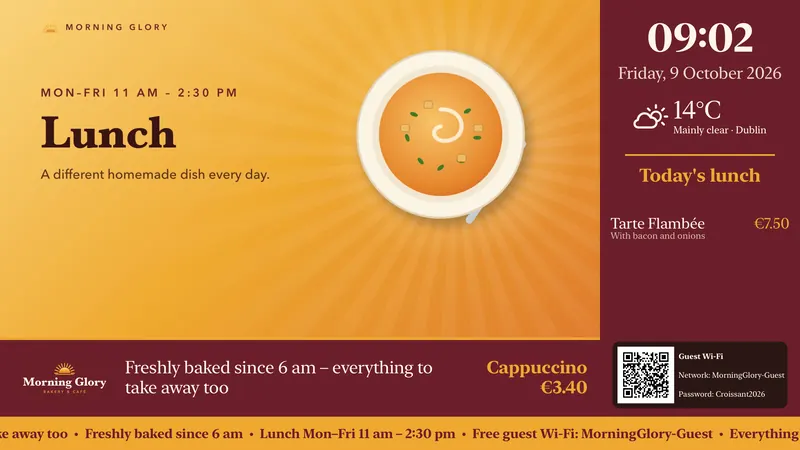
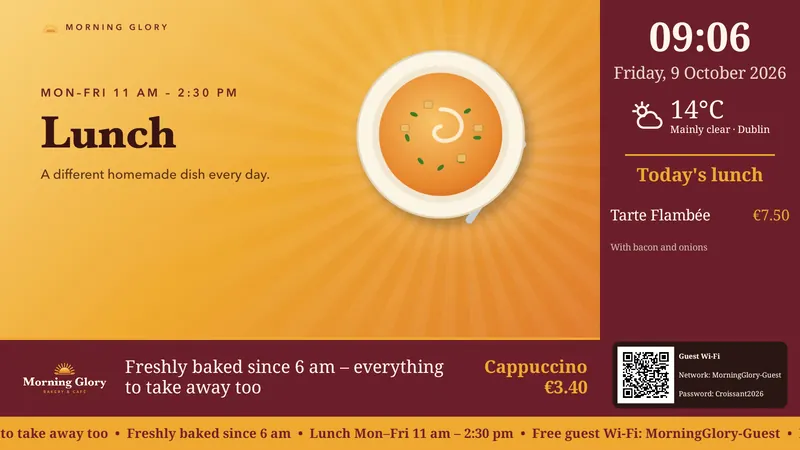
All images show modsiTV and the modsi app with sample content from a fictional bakery – not customer projects.
How to connect a screen
If a device breaks, connect the replacement device to the same screen – the licence slot stays the same. You can also swap an Apple TV for a web player.
- Start the player.Install and open modsiTV on the Apple TV or Android TV – or open the web player in the browser of the computer connected to the monitor.
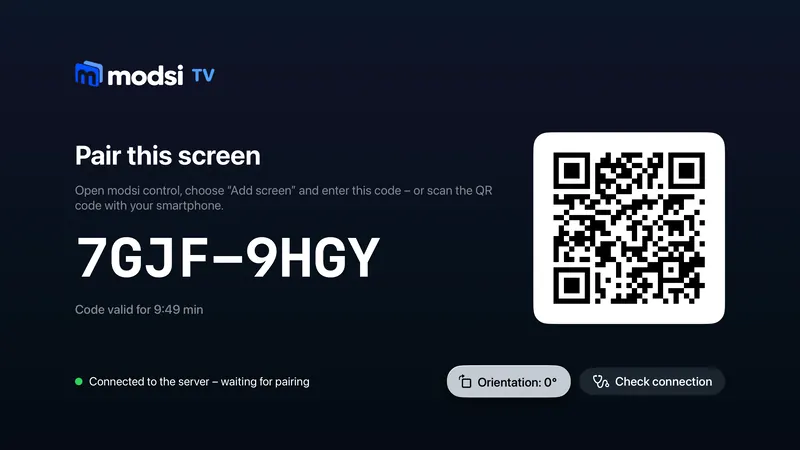
- Read the code or QR code.After starting, the player shows a short-lived entry code and a QR code. You do not enter a password on the device itself.
- Confirm in modsi control.Scan the QR code with your smartphone or enter the code in the browser, choose the company and location, and give the screen a name.
- Assign content.Assign a publication or a schedule. The player downloads everything in full, checks it and then switches over – in modsi you can see when the version is “active”.
No extra device: the browser
The web player is a page that runs in any current browser. It is a good fit if a computer is already connected to the monitor or if you would like to try modsi without new hardware first. Downloaded media are kept in the browser cache so that playback continues if the connection drops.
What to bear in mind with the web player
- After each browser start, sound needs one click on the page – until then, video plays muted. This is not necessary if the browser starts in kiosk mode with autoplay allowed.
- The computer must not go to sleep and the screen saver must be switched off – you set this in the operating system.
- The pairing is stored in the browser’s site data. “Clear site data” or a private window unpairs the screen; it then has to be connected again.
- A web player takes up one licence slot, just like a TV.
What modsi does not control on the device
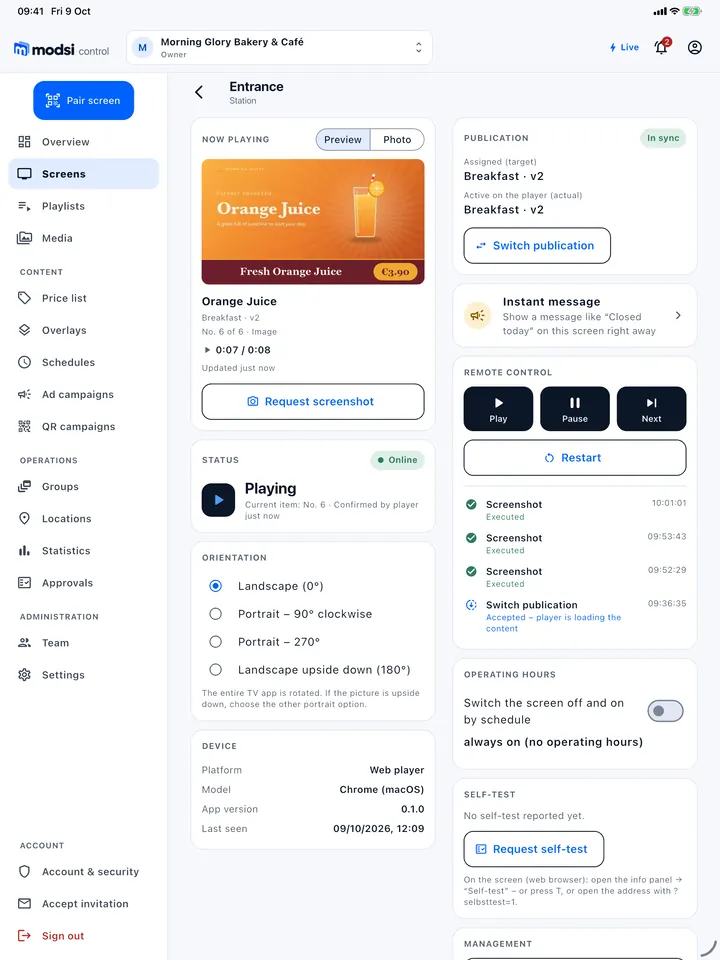
modsi controls playback in the player – the TV, volume, kiosk mode and starting the app automatically depend on the device.
More details: What modsi does not control on the device
modsi controls playback within the player: play, pause, next item and the change of publication. Switching the TV on and off, the volume, a locked-down kiosk mode or starting the app automatically after switching on are not part of the feature set – that depends on the device and its settings. The manufacturer will tell you whether a TV can be mounted and run permanently in portrait orientation.
We cannot guarantee permanent storage of content on the device: the operating system or browser may clear its cache; the player then downloads any missing files again. An overview of all features is under Features, prices per screen on the pricing page. Practical examples: Retail and Hospitality.
Frequently asked questions about devices
Your question isn’t here? Write to us – we’ll reply by email.
What devices do I need?
A TV or display with an HDMI input, plus an Apple TV or an Android TV device running the modsiTV app. Alternatively, use the web player: a page that runs in any current browser – for example on a mini PC, desktop or laptop connected to a monitor. You then do not need an Apple TV or Android TV. All three platforms receive the same content and can be mixed within one company.
What is a “licensed screen”?
Every screen you create in modsi takes up one licence slot – regardless of whether it is currently online. If you replace a device, the slot stays the same. If you archive a screen, its slot becomes free again. Apple TV, Android TV and the web player count the same.
What is the web player and what do I need to bear in mind?
The web player is a website that you open in the browser of a computer connected to a monitor. You pair it by code or QR just like a TV; it receives the same content, overlays, commands and group timing and is included in the statistics. Please note: sound needs one click after each browser start (or the browser starts in kiosk mode with autoplay allowed), the computer must not go to sleep, and “Clear site data” unpairs the screen.
How do I connect a screen?
After starting, the player – modsiTV on the TV or the web player in the browser – shows an entry code and a QR code. Scan the QR code with your smartphone or enter the code in modsi control, choose the location and give the screen a name.
What happens if the internet in the shop goes down?
Content that the player has already fully downloaded keeps playing. Changes and remote commands arrive as soon as the connection is back; plays collected offline are then reported. We cannot guarantee permanent storage on the device, because the operating system or browser may free up its cache.
Can I run screens in portrait mode?
Yes. In modsi control you choose the orientation for each screen (portrait 90° or 270°), and modsiTV and the web player then rotate their entire display. You create playlists and overlays for this in portrait format. modsi only rotates the image: whether your TV or display may be mounted and run in portrait permanently depends on the device – the manufacturer will tell you.
Start with the device you already have.
A laptop connected to the TV is enough to try it out. If you switch to Apple TV or Android TV later, connect the new device to the same screen – the licence slot stays the same.
Access by request · billed by invoice and bank transfer, monthly or yearly